Chapter 2. First Steps
The following chapter gives you an initial overview of the most important functions of ReportServer. We will show you, among other things, how to log on to the system, how to navigate the interface, how to use the TeamSpace, and the basics of executing reports.
In the following, we show you how to log in to ReportServer. Please note that the login dialog may look slightly different depending on how ReportServer is configured in your organization. To find out which login method is used in your company, please contact your system administrators.
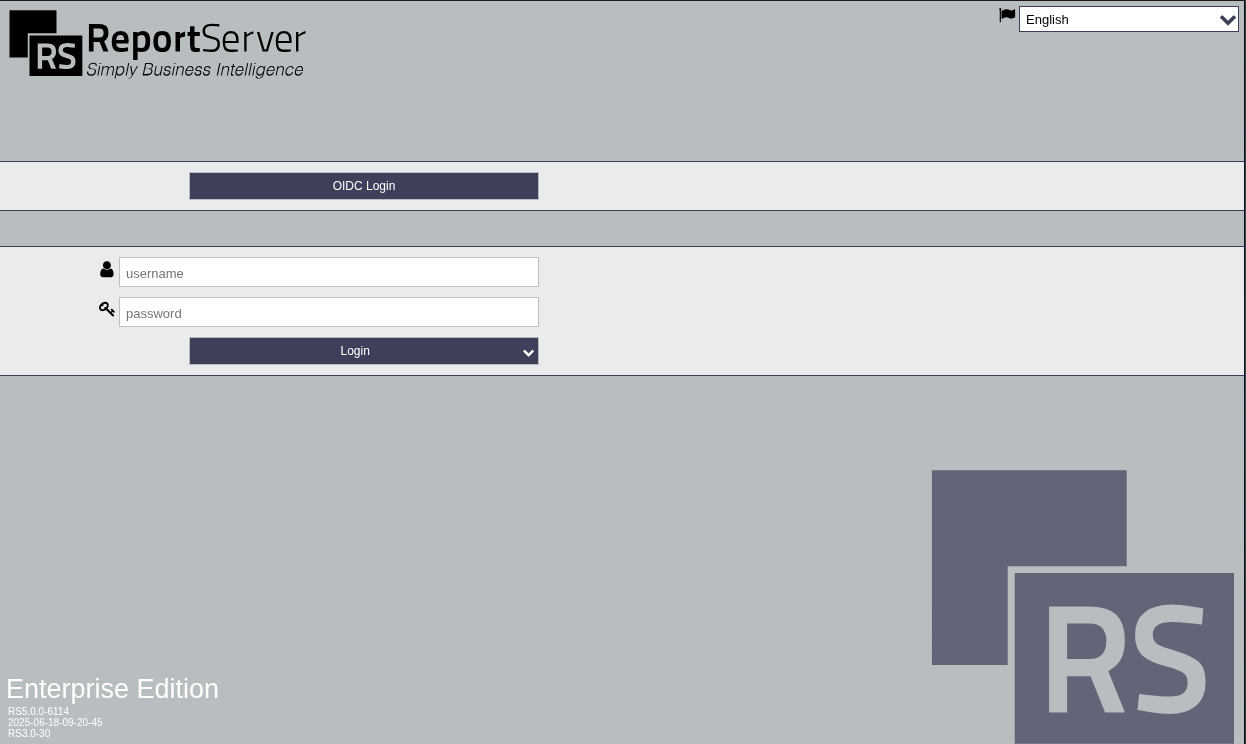
ReportServer provides two different ways to log in: A) Login using 'credentials' (see 2.1.2.) or Option B) Login using 'OIDC' (see 2.1.3.).
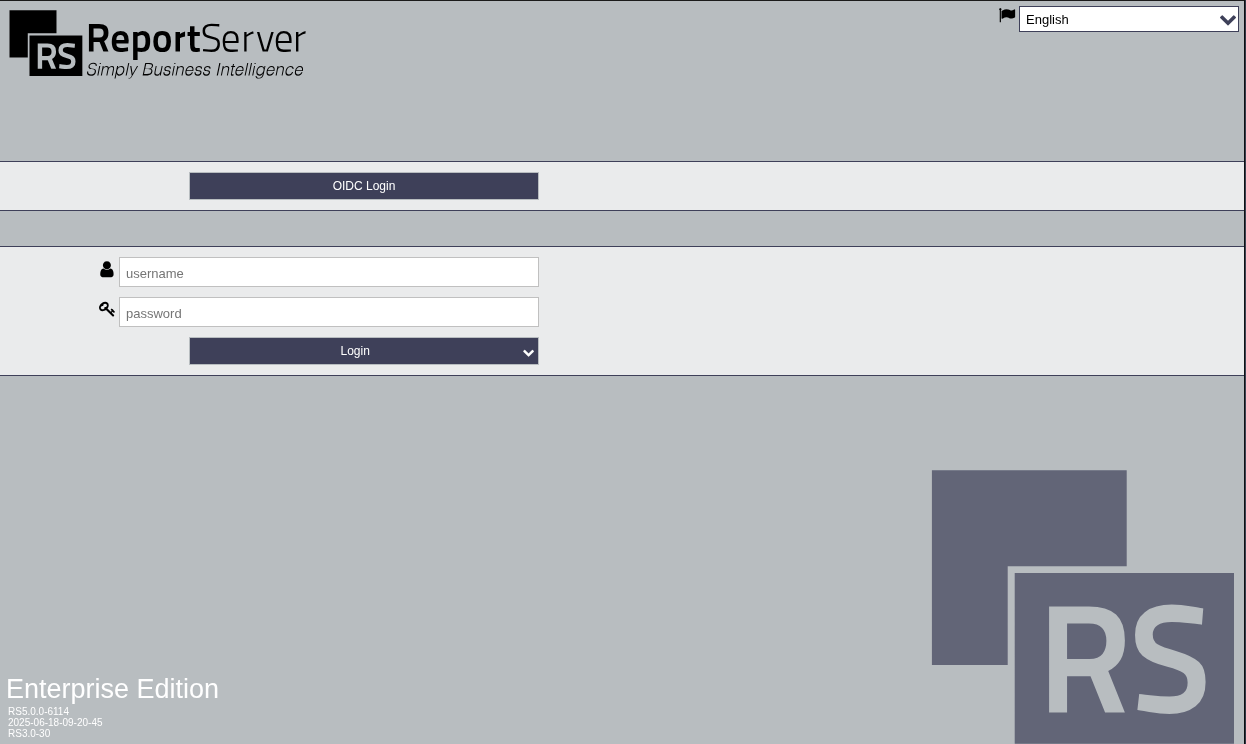
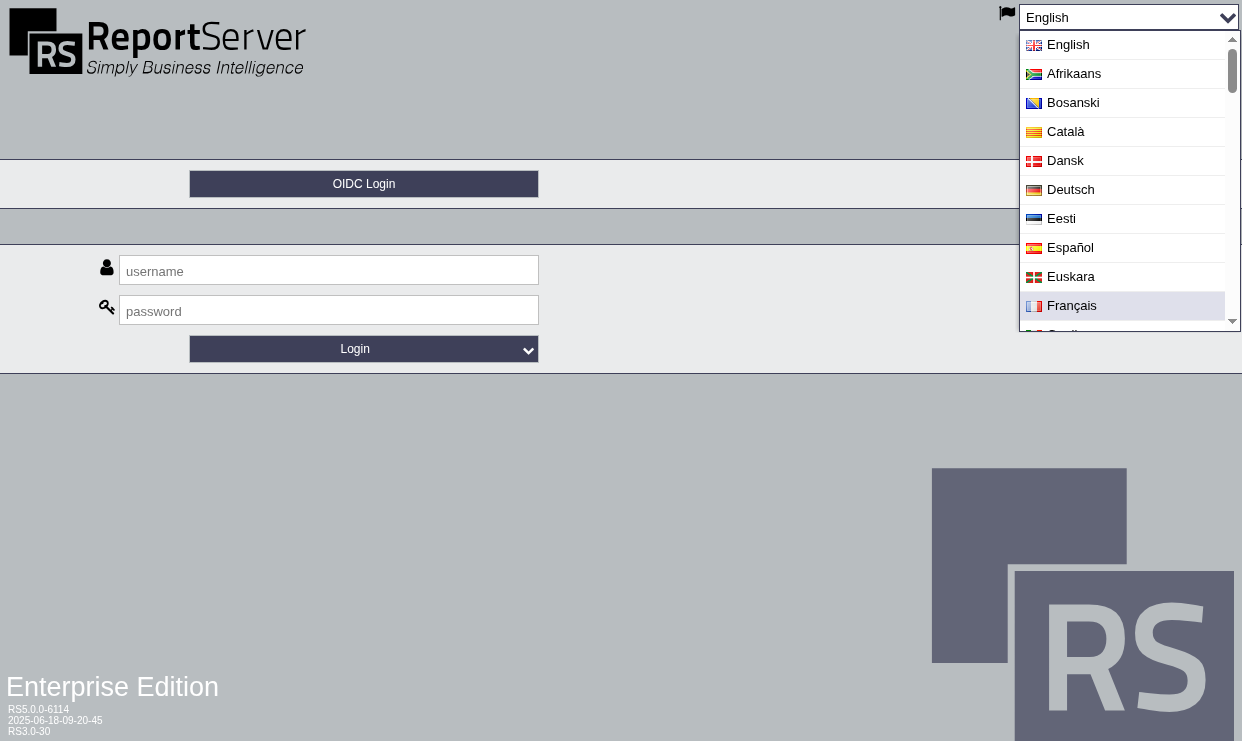
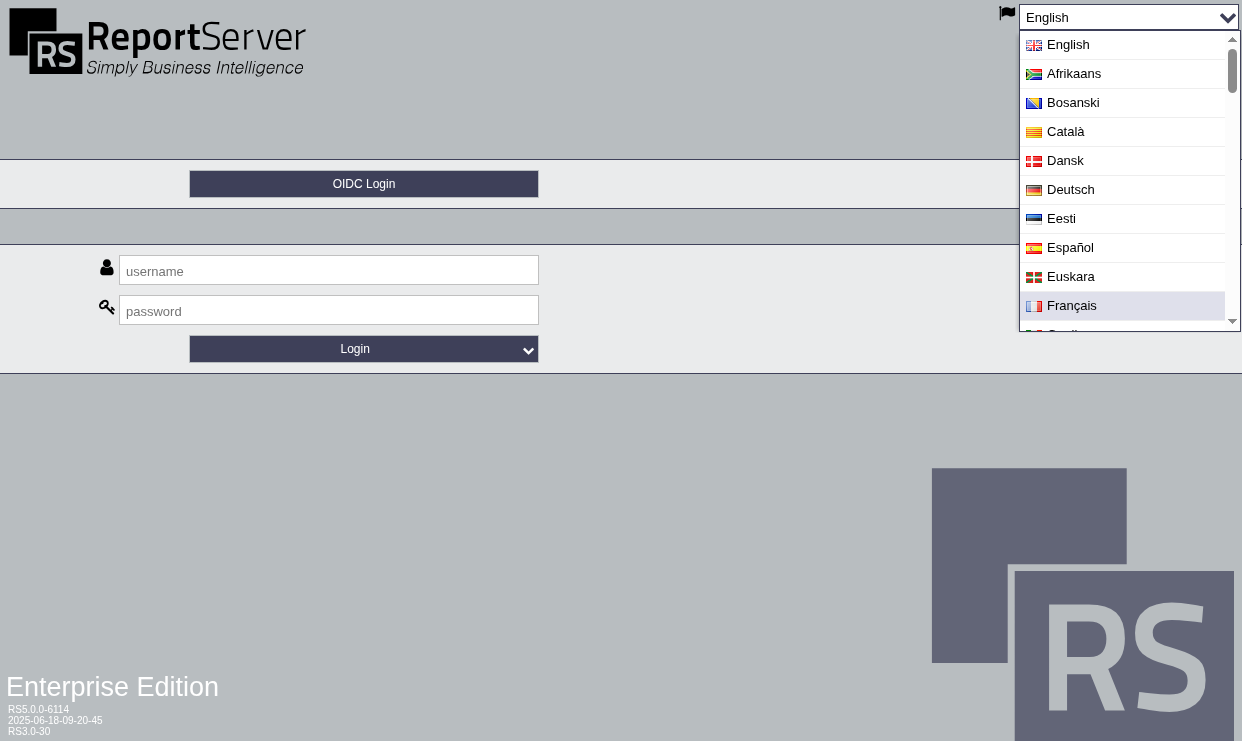
In addition to entering your login information, further options may be configured during login. These settings apply only to the following session. This includes, among other things, the display language. The user can simply select the preferred language in the upper right corner.
When logging in, the following information is requested in the login window:
- Username
- Password
Please note that a maximum number of failed login attempts may be configured. If the maximum number of failed login attempts is reached, your account will be blocked automatically. It can only be used again after a waiting period has elapsed, or after being reset manually by an administrator.
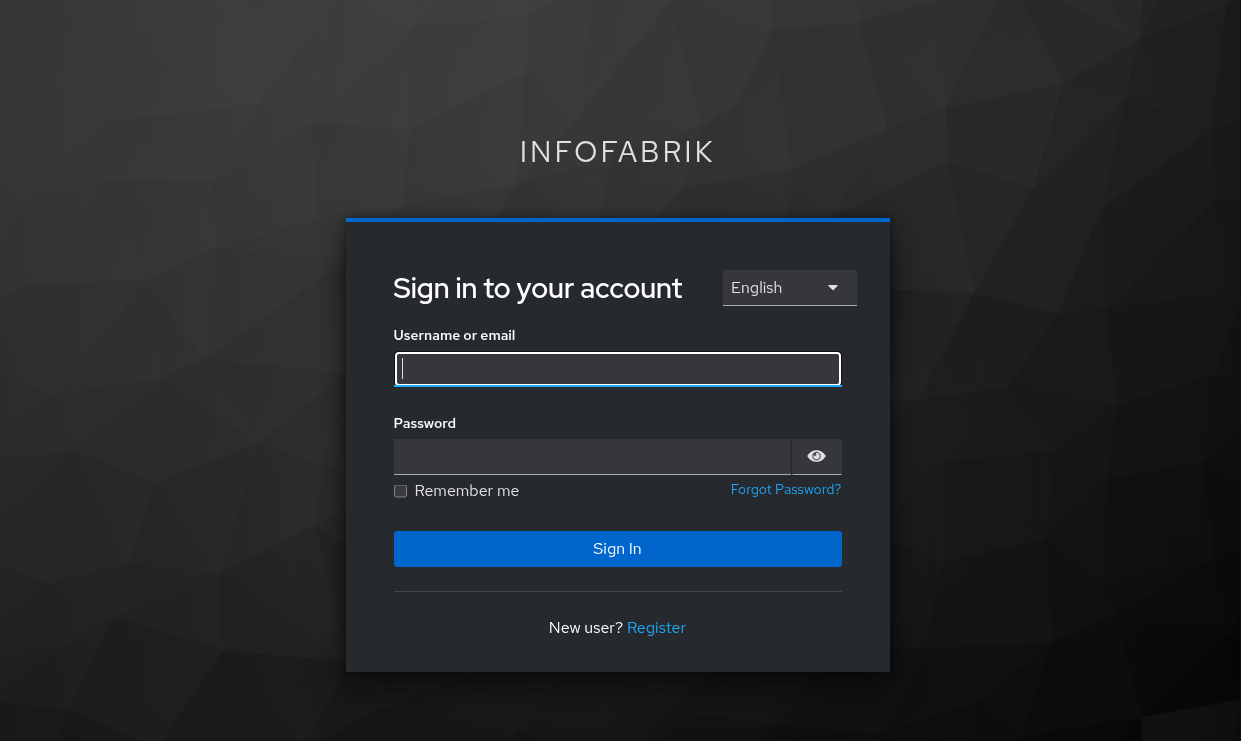
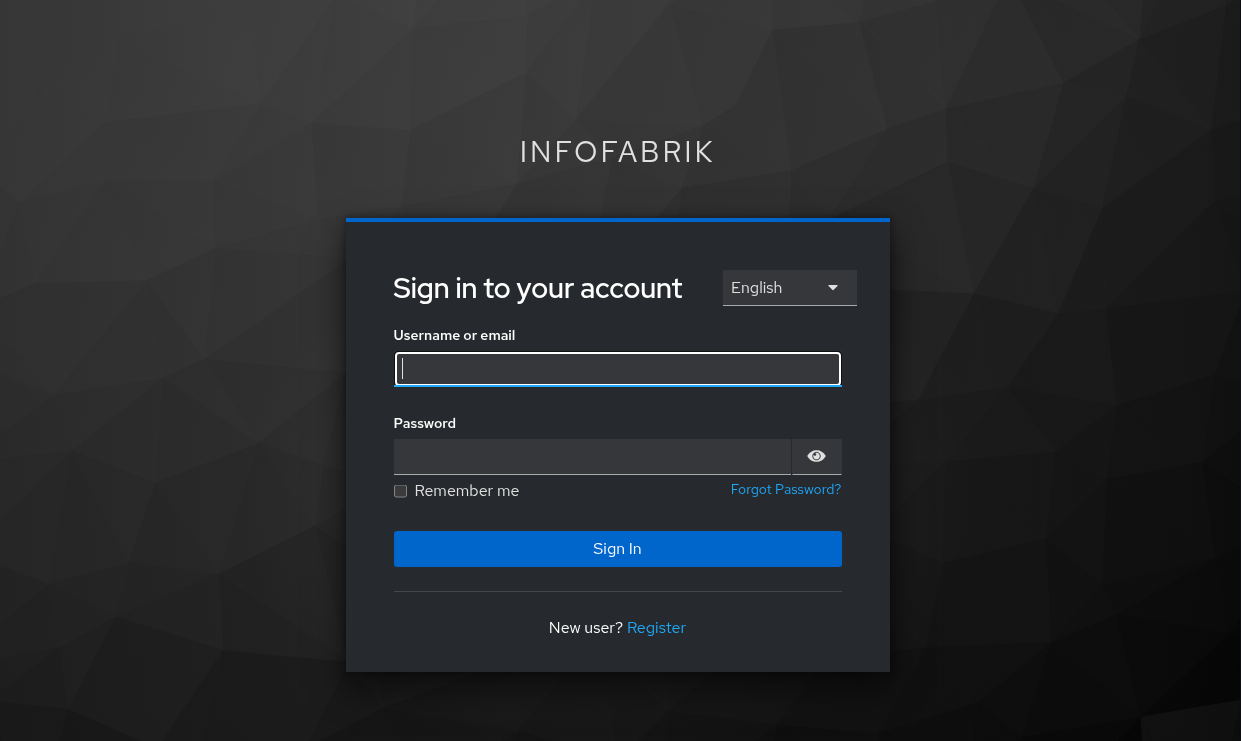
With the new ReportServer version 6.0.0, we introduce the new system "OIDC" (OpenID Connect -- a modern, secure authentication standard). Depending on how your organization has configured ReportServer, you either log in via the "old" login interface or via the new "OIDC Login" button. With SSO (Single Sign-On), it is also possible to sign in only once and then access multiple applications automatically. You will then be redirected and can log in there, depending on your organization's configuration. * Depending on the organization, the OIDC login window may also look different.
If you have forgotten your password, select the "Forgot password" option in the menu next to the button. Then enter your username in the "Forgot password" window. A new password will be sent to the email address stored for your account.
Please note that your administrator can disable the "Forgot password" button. This is described in the Configuration Guide.
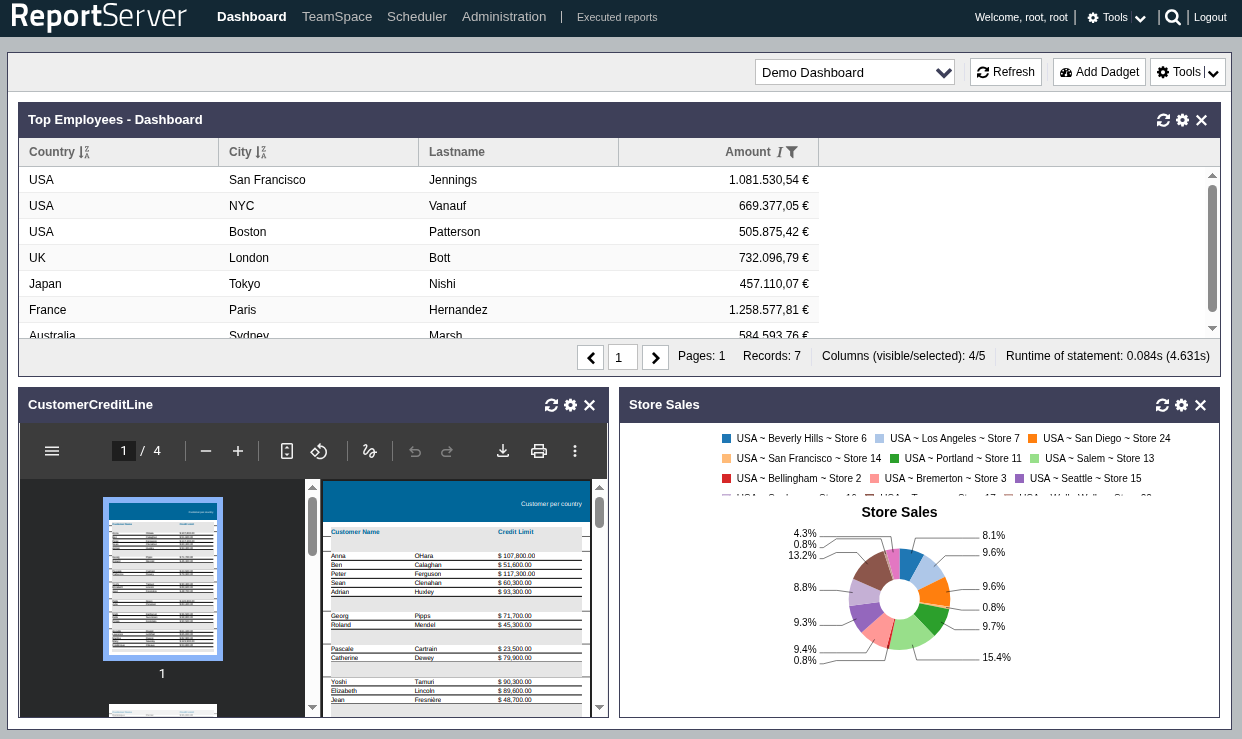
After successfully logging in to ReportServer, you are in the Dashboard module, which allows you to create an individual overview page. In addition to the dashboard, ReportServer is divided into further modules that you may have access to depending on the configuration. You can switch between modules using the module bar at the top of the screen. In the upper area of the screen you will also find the search function; by clicking on your name you can view and edit your user profile.
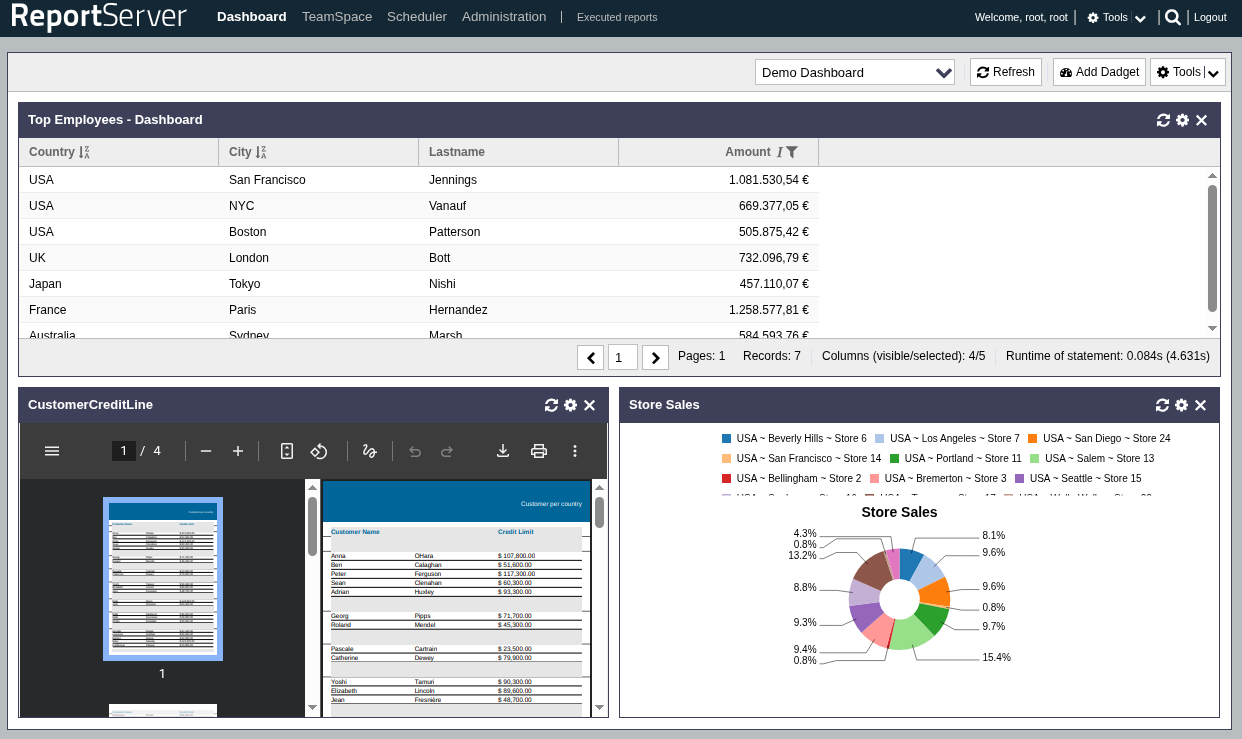
In the user profile you will also find the option to change your password. At the very bottom of the window you will find the status bar; depending on the system configuration, additional information may be displayed here, e.g. the current data status.
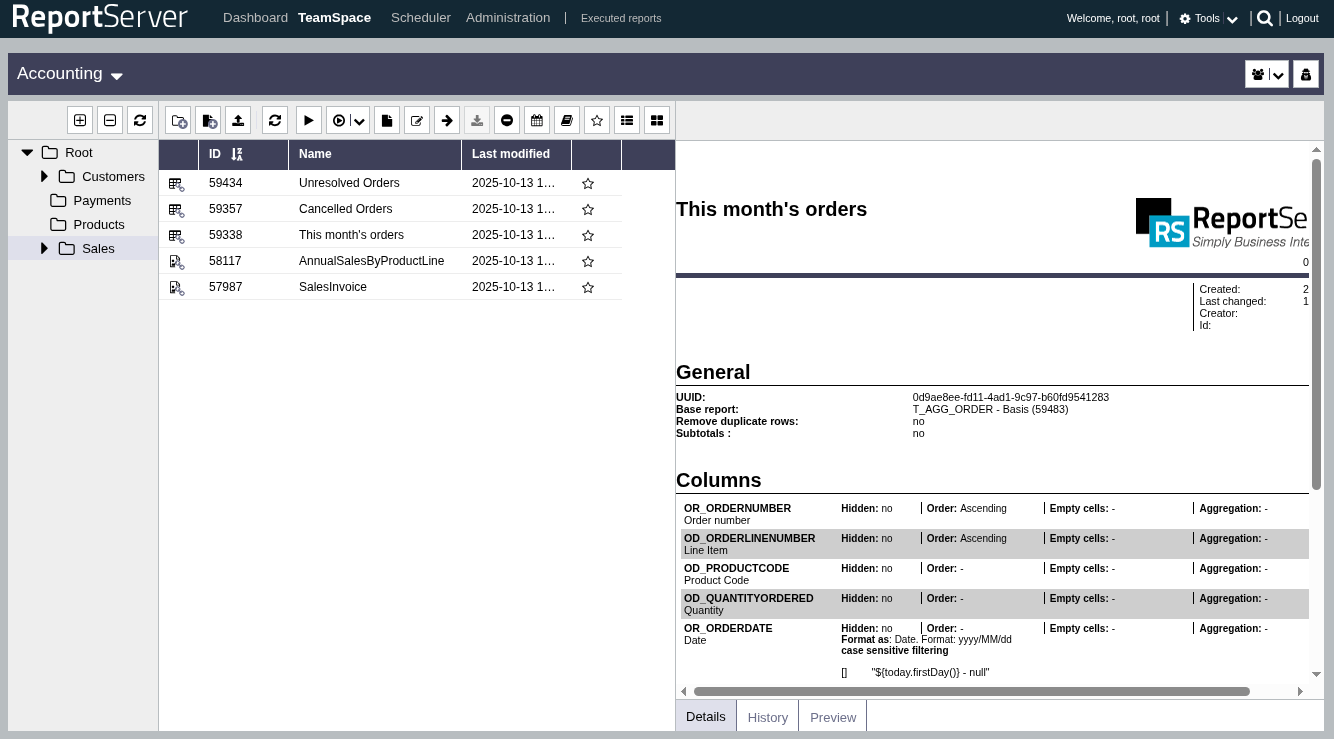
The main work area for ReportServer users is the TeamSpace. You can select it in the module bar at the top of the screen.
The TeamSpace provides separate work environments for user groups or teams. A team is any size group of users working with shared report objects. Users can form teams and manage their TeamSpaces independently using simple role-based user administration. For example, it is possible to add individual users as guests in a TeamSpace so that they cannot make any changes.
Similar to Windows Explorer, the TeamSpace provides a folder structure. On the left, you can open the explorer bar to get an overview of all available directories. By clicking a folder, you open it in the content area in the middle of the screen. By default, the root folder (the top-level directory) is displayed. Using the view buttons in the toolbar of the content area, you can reconfigure the display.
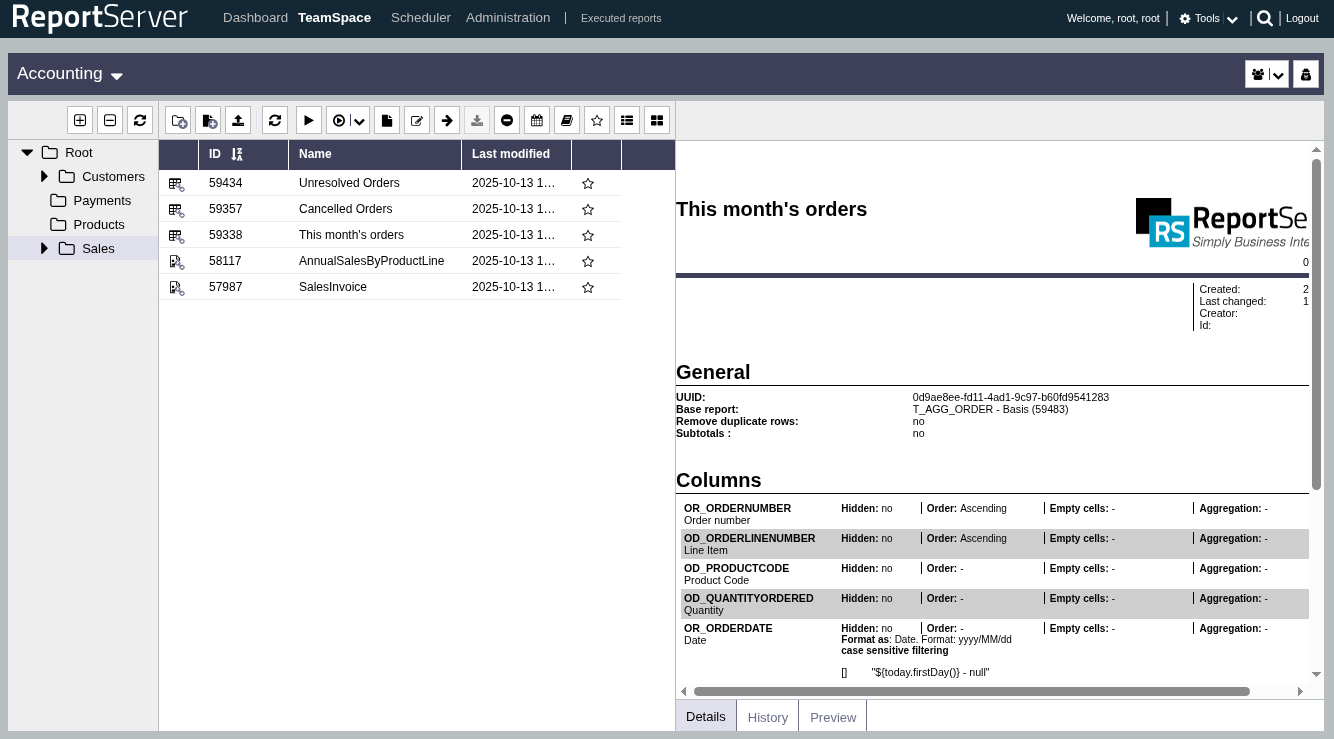
In the detail view, additional information about the currently selected object is displayed. Depending on the object, different information is available, which you can switch between using the tabs at the bottom.
Double-clicking an object opens it. You can open the context menu using the right mouse button; it contains further commands. Moving objects works as usual via drag-and-drop.
You can find further information on the TeamSpace in Chapter TeamSpace.
ReportServer distinguishes between different report types that cover different aspects of reporting. Further details on the different report types that are relevant from a user perspective can be found in Chapter Reports. The different report types are described in detail in the Administration Guide. Reports are created and managed in ReportServer by administrators or report designers. As a user, individual reports are provided to you in the TeamSpace. From there, depending on the report type, you can further configure them, execute them, schedule them, and export them to different formats. Once configured, evaluations can be saved as so-called variants and executed again at any time with current data.
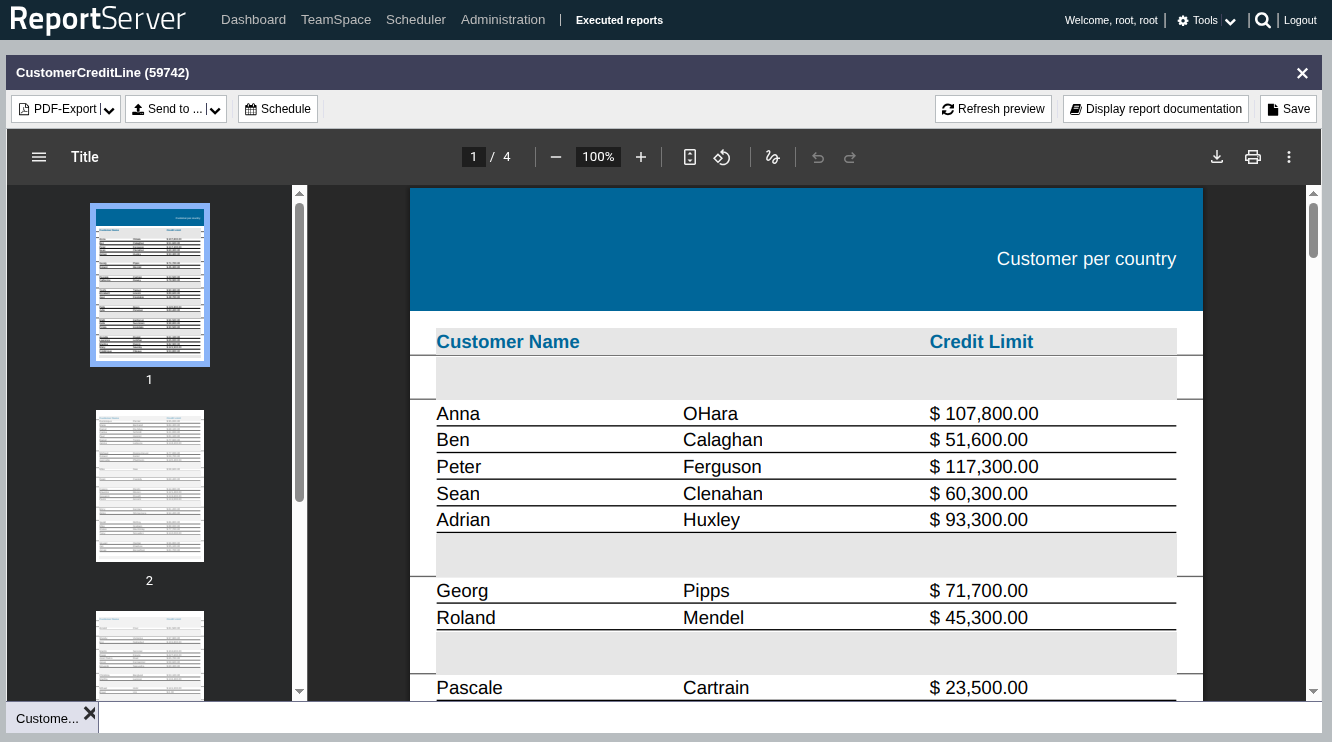
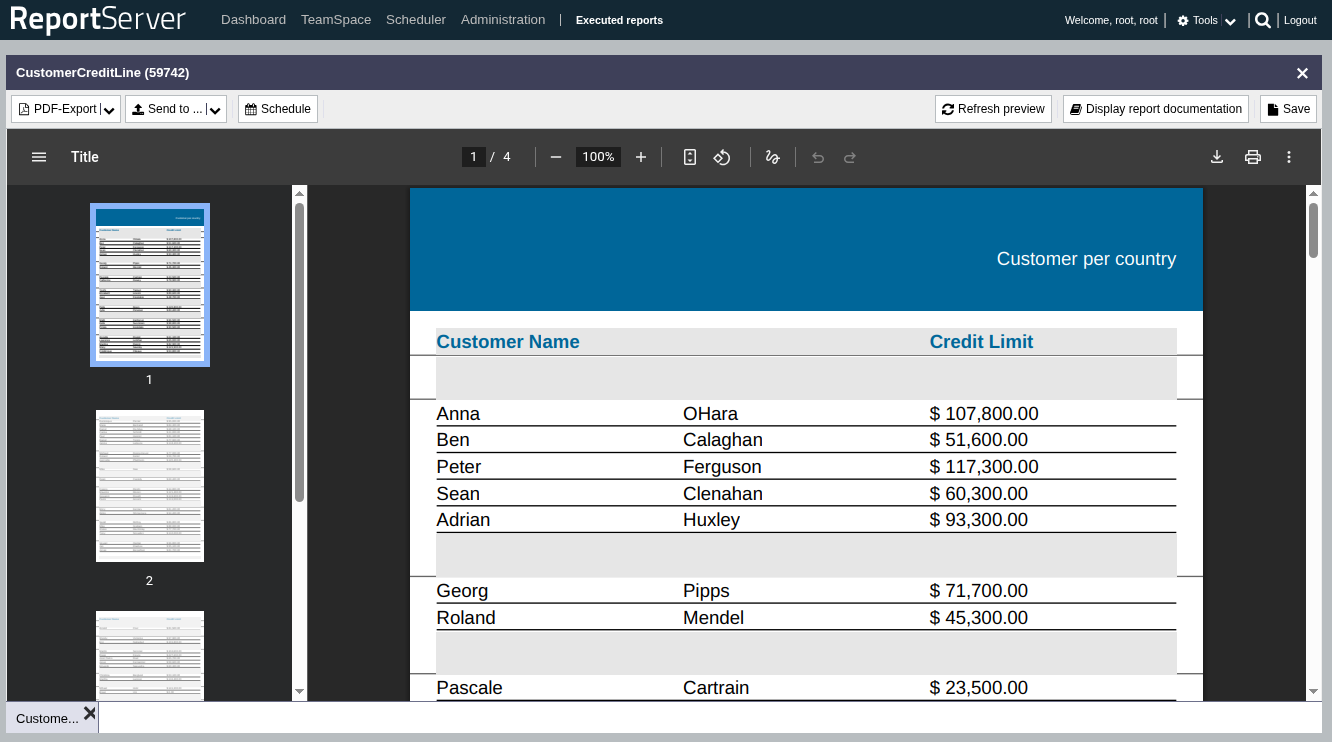
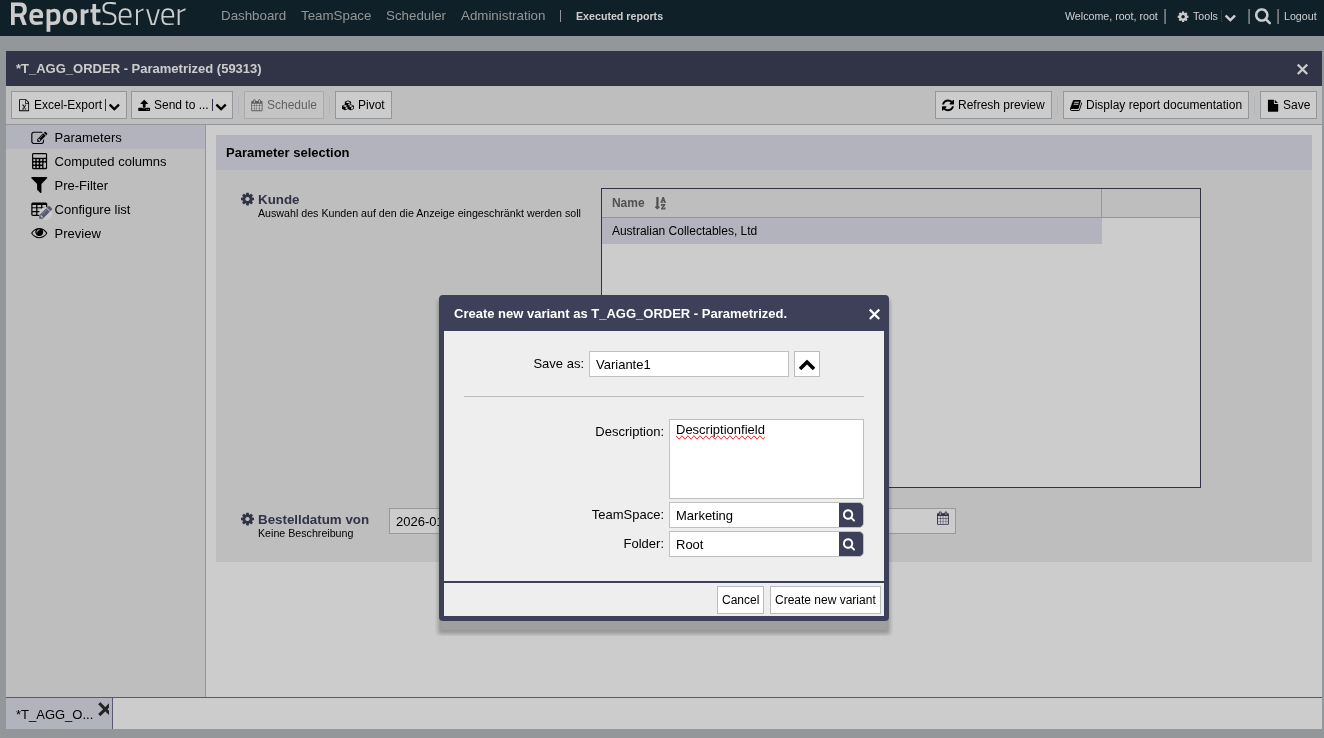
By double-clicking a report object in the content area or using the "Open" button, you open the report view. A further area then appears in the module bar, providing access to the reports currently open. When the last report is closed, this area is no longer displayed. If multiple reports are open at the same time, you can switch between them using the tabs at the bottom of the screen. Reports can be closed via the corresponding icon in the tabs or via their context menus.
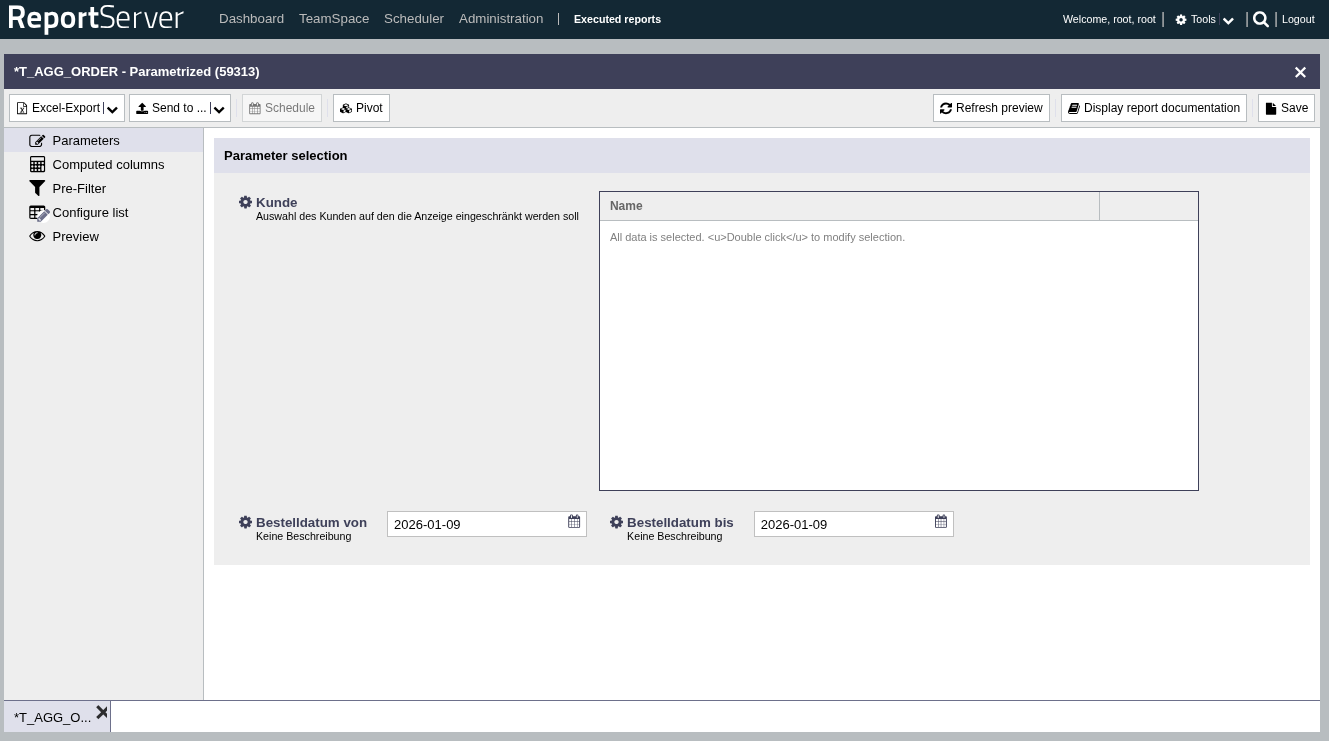
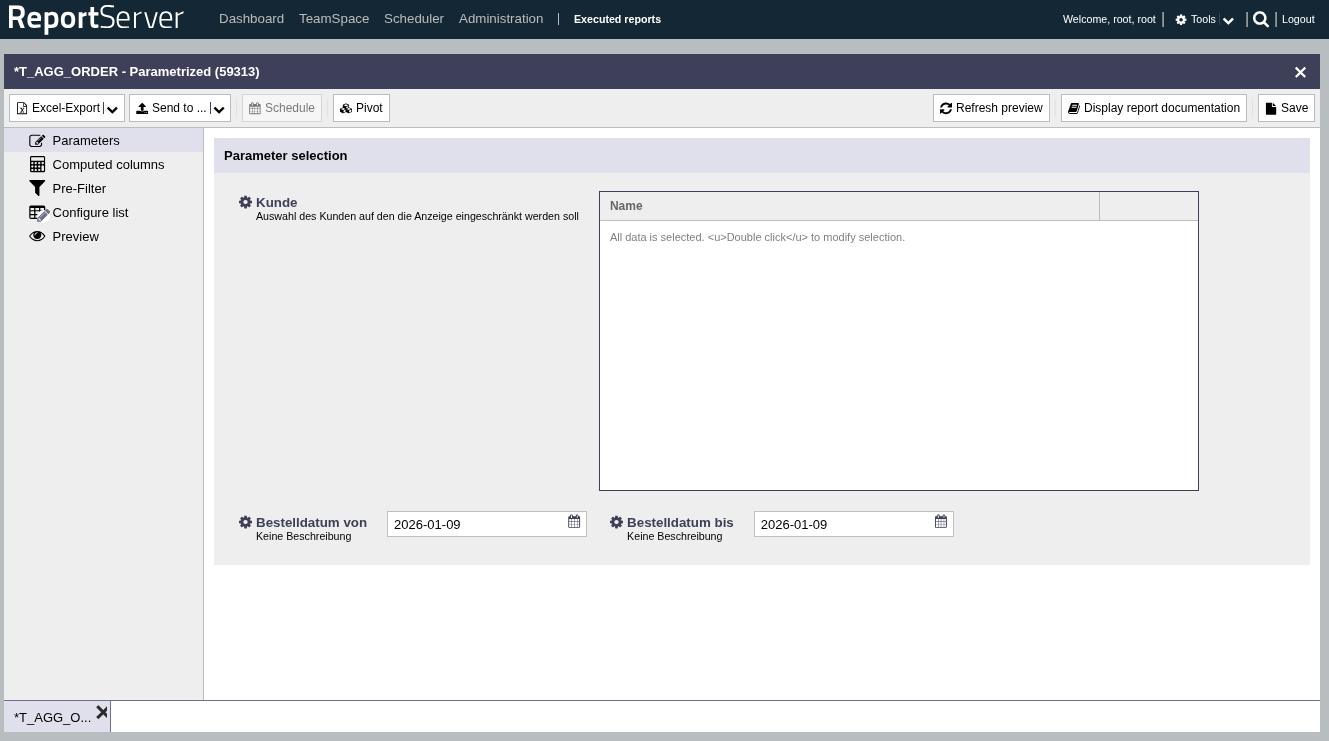
The view of an opened report is structured as follows: the toolbar contains general commands for executing and saving the report. On the left side you can select different aspects of report configuration. To see a preview of the report with your current configuration, select the aspect. Using the menu, you can download the executed report in the desired format and save it on your computer.
If available, you can use the Parameters aspect to apply predefined settings. Different parameter types allow easy report configuration. In addition to free text input, there are special parameter types for dates and for selecting from predefined lists.
All parameters can be reset to their default values via the context menu. The list parameter can be configured by double-clicking it. This opens a selection window that is also used elsewhere in ReportServer. All selectable values are shown in the left list, which can be filtered using the search field. To select a value, move it to the right area (the currently selected values) using drag-and-drop or by double-clicking.

The button allows you to quickly select all values currently displayed. The and buttons delete values that have already been selected.
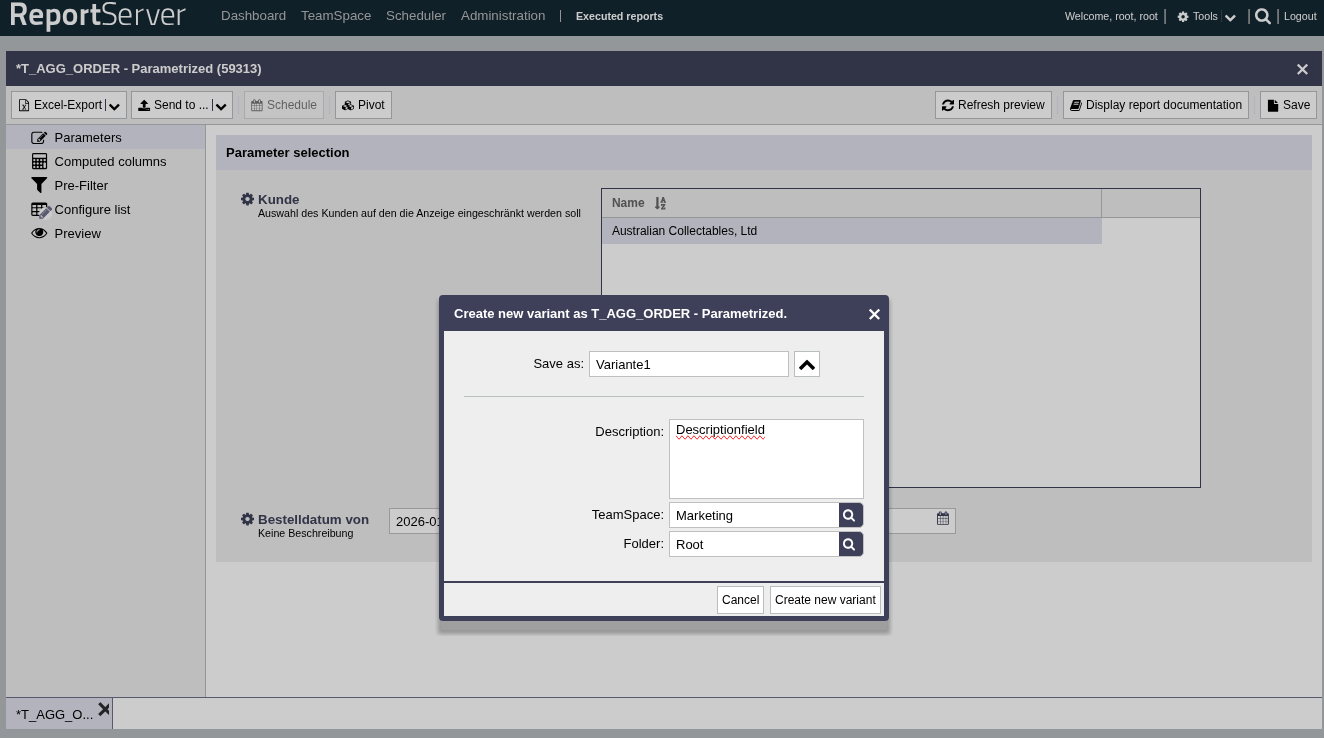
The configuration you have made can be saved in the TeamSpace as a new report object. Such a report object is called a "variant". A variant contains all settings you have made, but not the actual data; the data is reloaded each time the report is executed. All settings are also summarized in the report documentation. It thus provides a quick overview of the configuration of the variant. Please note that the report documentation always refers to the saved object; changes to a variant therefore only become visible in the report documentation after saving.