Chapter 3. TeamSpace
TeamSpaces allow you to use reports and evaluations together with your colleagues. Similar to a network drive, you can store the objects you use here according to your requirements or make them available to others. A simple, role-based user management allows you to organize your team independently.
Users in the TeamSpace have one of the following roles:
| Guest | Have read-only access to all objects in the TeamSpace, but cannot make any changes to the structure or objects. |
| User | Have full access to all objects in the TeamSpace, but cannot edit the TeamSpace configuration (e.g. member management). They can create new variants, but cannot import objects. |
| Manager | Have all rights of a regular user, but can additionally import report objects and manage the members of the TeamSpace. |
| Administrator | In addition to the rights of a manager, can edit the name and description of the TeamSpace and delete the TeamSpace completely. However, this right is only available if the user also has the generic delete permission for TeamSpaces (see permissions management in the Administration Guide). |
Please note that the assigned roles have no influence on which data a user can effectively view. This is controlled centrally by the system administration. As a result, it may happen that you can see a report in the TeamSpace but cannot execute it.
Each user can be a member of multiple TeamSpaces. You select the active TeamSpace using the list on the right side of the TeamSpace bar.
 |
Use this button to create a new folder. |
 |
A new window opens where reports can be imported. |
 |
A new window opens in which you can select the desired file and then upload it. |
 |
The double arrow refreshes the content area. |
 |
If a report is selected in the content area, you can open it with this button (double-clicking the report works as well). |
 |
First select a report. The "Execute" button then provides additional options, e.g. executing/exporting the report in formats such as Excel, CSV, Template, HTML, and many more. |
 |
Generates a test document for the report. |
 |
Rename the selected item. |
 |
Opens a new window where you can change the TeamSpace of the selected item. |
 |
Remove the selected item. |
 |
If a report is selected in the content area, you can open the scheduler directly. |
 |
Downloads the report documentation. |
 |
Marks the selected item in the content area as a favorite. Favorites can then be displayed on the dashboard. |
  |
Switches the overview display in the content area depending on whether tile view or list view is selected. |
The TeamSpace view is similar to that of a file manager, as you may know it from Microsoft Windows. On the left side you find the explorer, which is collapsed by default and allows you to quickly switch between different folders.
The currently opened folder is displayed in the content area. Using the view buttons, you can control the level of detail and the arrangement of the content area. The toolbar of the content area contains buttons for the functions listed above.
On the right side, detailed information about the selected object is displayed. You can switch between different pages using the tabs.
You can move objects to other folders via drag-and-drop, both within the content area and in the explorer.
Right-click an object to open the context menu. Here you can rename the object or remove it from the TeamSpace. For report objects, you can also use the option to export the report directly in the desired format.
The following icons represent the different object types that can occur in the TeamSpace. The icons for report objects may additionally be shown with an overlaid chain symbol, which indicates a report reference. Further information on report references can be found in Section Importing Reports.
 |
A folder. Folders structure the various object types in the TeamSpace. |
 |
A Dynamic List. |
 |
A graphical report "Birt". |
 |
A graphical report "JXLS". |
 |
A graphical report "Jasper". |
 |
A graphical report "Saiku". |
 |
A graphical report "Grid Editor". |
 |
Created scripts. |
 |
Executed reports saved in the TeamSpace are shown with the icon that belongs to the respective file type, e.g. a PDF icon as shown here. Further information on saving executed reports in the TeamSpace can be found in the chapter on Scheduling. |
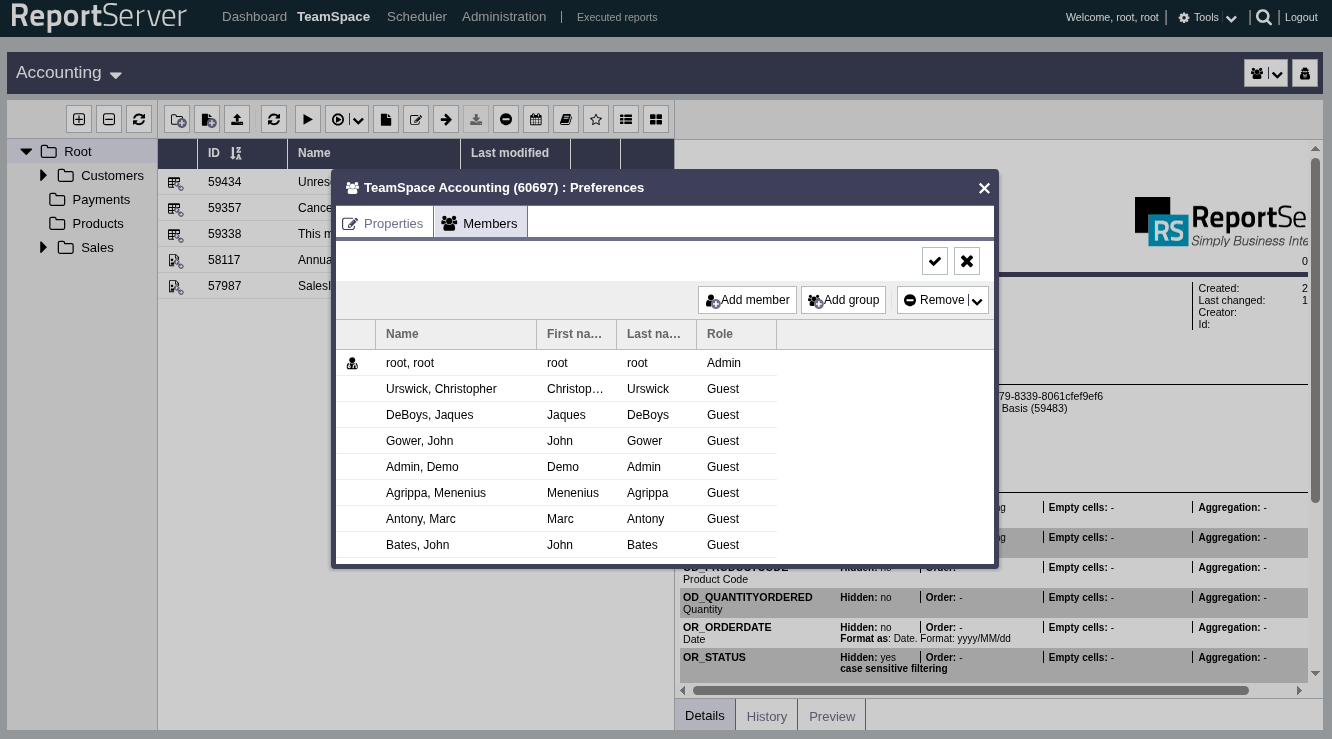
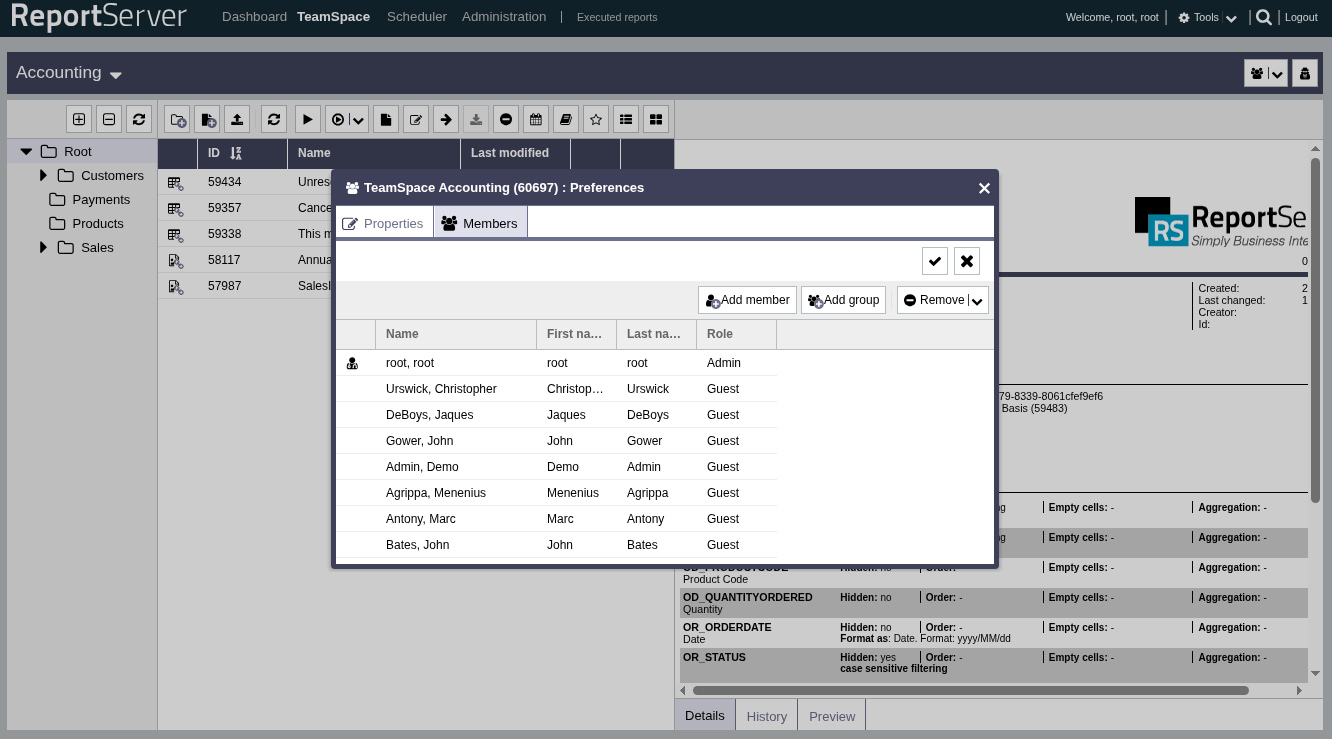
Using the button you can access the TeamSpace settings. Here you can edit the name and description of the TeamSpace and define the members and their roles. If you have the required permissions, the administration menu also contains options to the active TeamSpace or to new TeamSpaces.
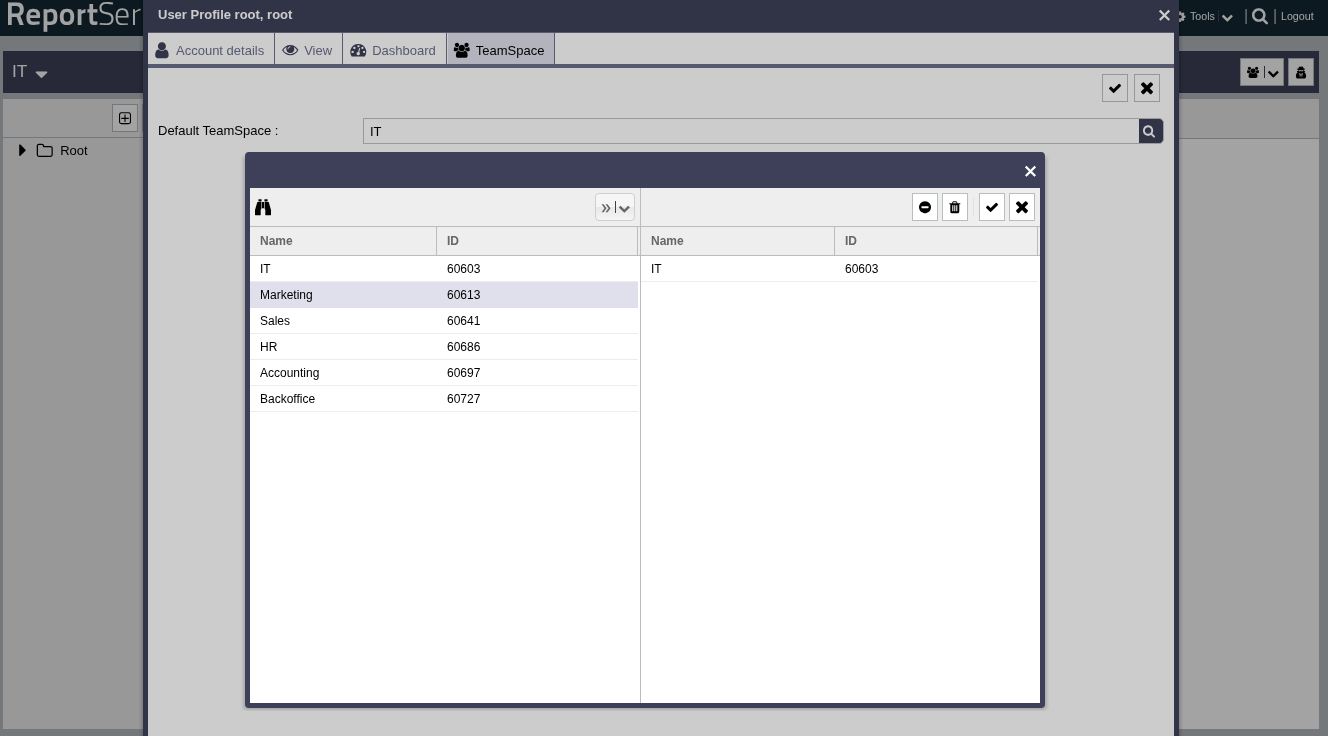
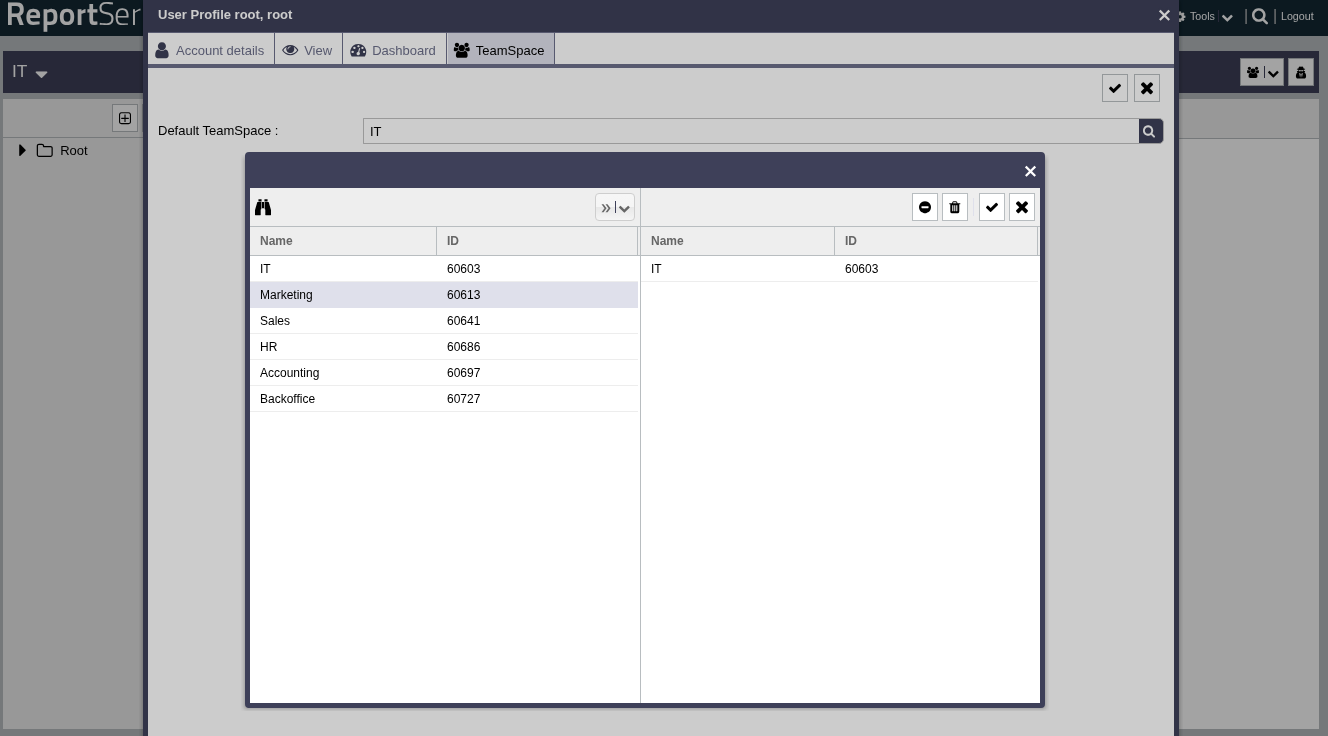
The setting that determines which TeamSpace is loaded automatically at startup can be found in your user profile. You can access the user profile by clicking your name in the module bar.
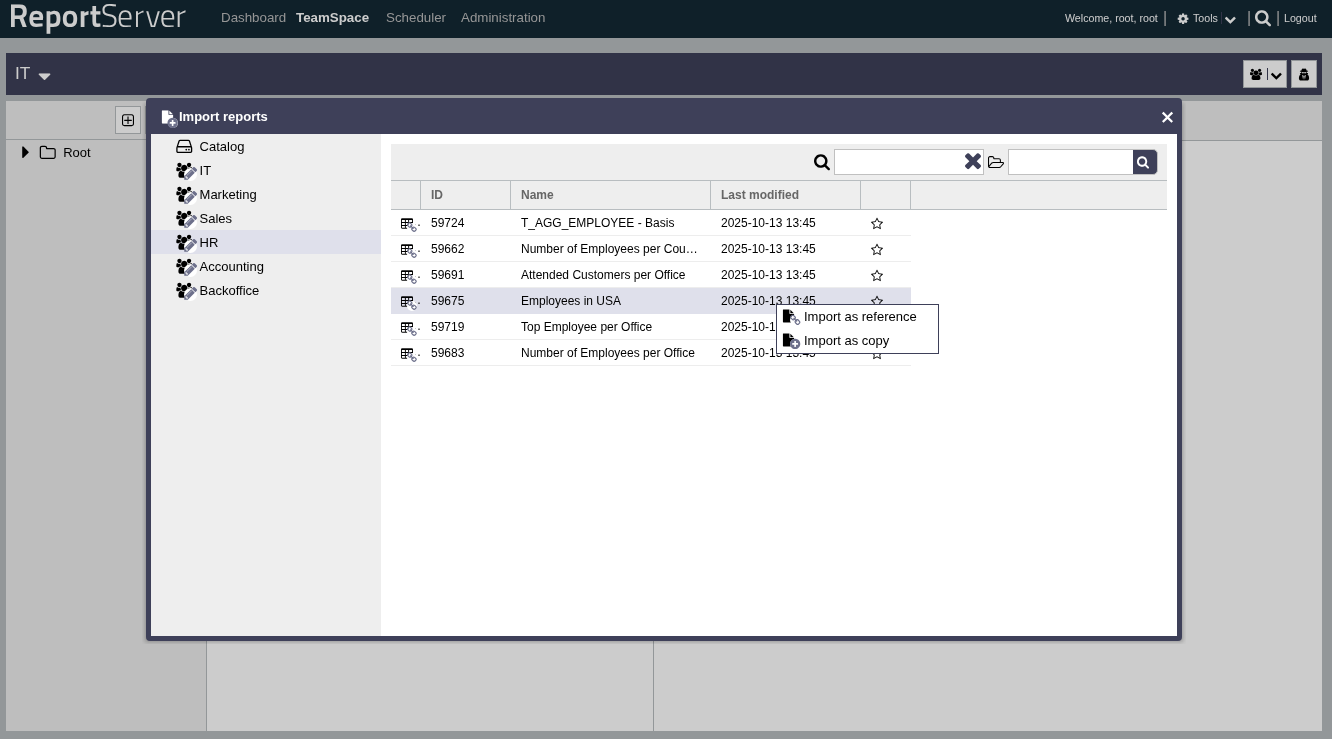
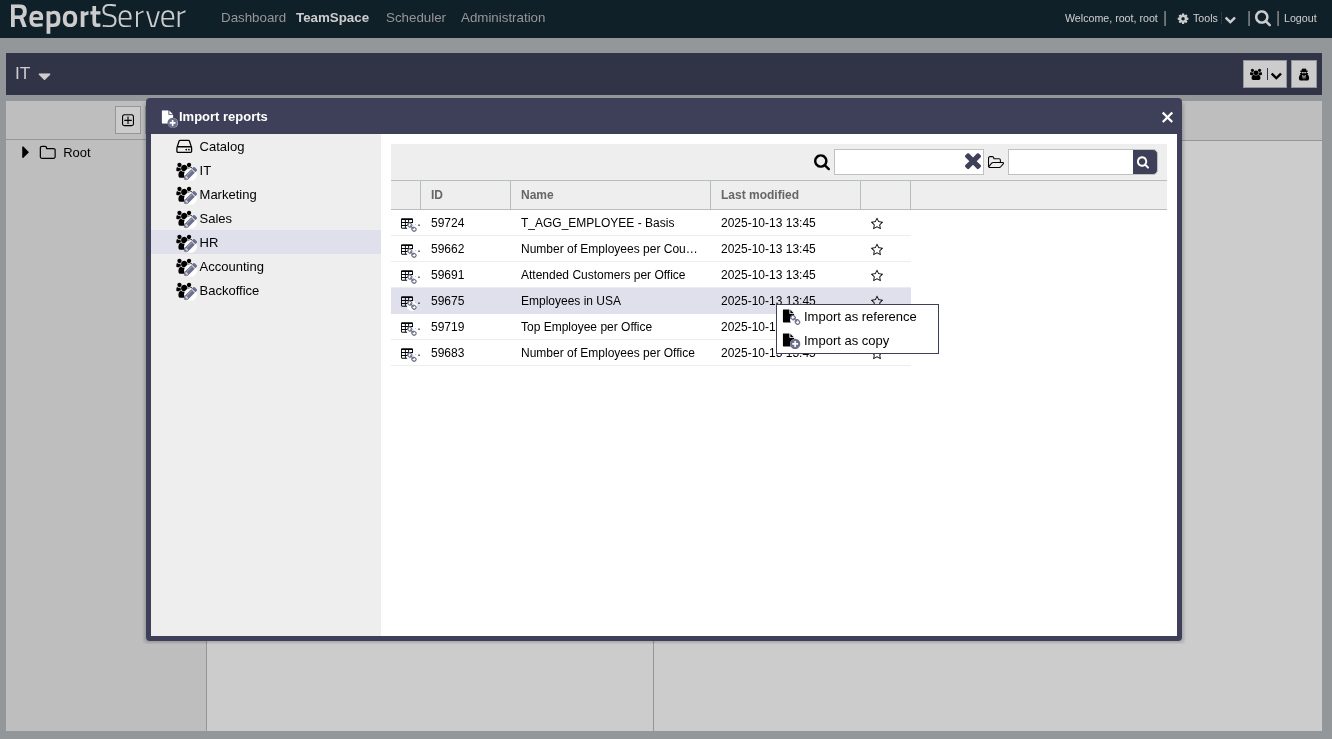
If you hold the role of a Manager or Administrator in a TeamSpace, you can import any report or variant you have access to. Reports and variants within a TeamSpace are generally visible to all users of that TeamSpace; whether a report can actually be executed depends on the specific permissions of the individual user. The dialog provides all report objects you have access to for selection. In addition to reports from your TeamSpaces, these may also be objects from a global catalog.
There are two basic ways to import an object into a TeamSpace:
Import as copy: The source object is duplicated and an independent report object is created in the target TeamSpace. Changes to the source object have no effect on your copy.
Import as reference: When importing as a reference, the object is not duplicated. Instead, a link to the imported object is created. Changes to the source object will always affect your reference as well. You cannot make changes directly to the reference. However, variants derived from the reference can be saved under a new name and are then independent of the source object.
Changes to a referenced object therefore affect all references equally. If you delete a reference, only the link is removed. As long as other links exist, the actual report object remains.
Importing from the catalog is always done as a reference.